Client Delivery
Teamwork.com guest access vs paid seats for clients
Compare client guest roles, permissions and seat rules in Teamwork.com, monday.com and ClickUp.
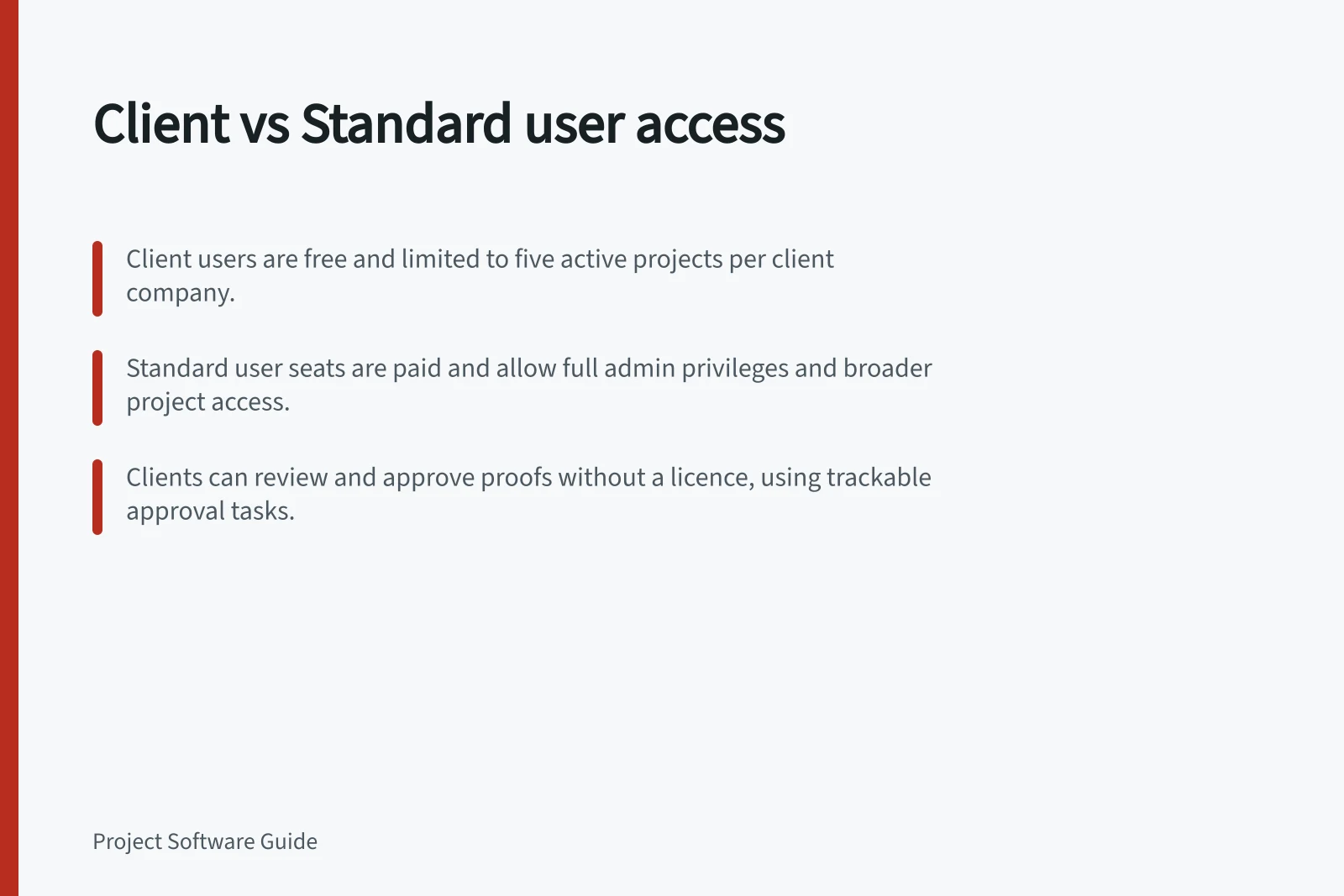
Teamwork.com calls its external-client project role a Client user, not a guest. The Client user licence is free on Deliver, Grow and Scale and does not count towards subscription cost.
The paid option for broader access is a Standard user seat. Standard users can have permissions up to site administrator level, and each occupies a paid seat; Client users have a more limited set of permissions.
Key Facts: Client Access in Teamwork.com
- Free Client Access
- Available on Deliver, Grow and Scale plans
- Max Projects per Client
- 5 active projects
- Paid Seat Required?
- Only for Standard users with expanded permissions
List each client’s required access
Check whether the client needs to create or edit project items, complete tasks or milestones, view or upload files, add or reply to messages, or comment on project items. Client users can do these things, and trackable approval tasks can be used for clients to sign off on work.
Compare documented client roles
Client users are intended for people who contract work from your company but are not part of it. They can be added to client companies, not the owner company; internal team members are a poor fit for this role.
A Client user can join up to five active projects associated with their client company. They can create and edit project items, complete tasks and milestones, view and upload files, add and reply to messages, and comment on project items.
Client users cannot create or manage forms, view project profitability, manage project members, or have administrator privileges. If a client needs permissions the Client user role does not provide, the paid Standard user role offers broader permissions.
Site admins can add and manage users. Standard users can also do so if they have the Manage people and companies profile permission.
Teamwork.com Client User vs Standard User: Permissions and Usage
- User Type
- Client User (Guest)
- Cost
- Free on Deliver, Grow and Scale plans
- Projects Allowed
- Up to 5 active projects per client company
- Can Create/Edit Project Items
- Yes
- Can Complete Tasks & Milestones
- Yes
- Can Upload Files
- Yes
- Can Add/Reply to Messages
- Yes
- Can Comment on Project Items
- Yes
- Can Create or Manage Forms
- No
- Can View Project Profitability
- No
- Can Manage Project Members
- No
- Administrator Privileges
- No
- Paid Seat Required?
- No
- Use Case
- External clients needing limited access to up to 5 projects
- User Type
- Standard User
- Cost
- Paid seat (counts against subscription)
- Projects Allowed
- Unlimited (subject to plan limits)
- Can Create/Edit Project Items
- Yes
- Can Complete Tasks & Milestones
- Yes
- Can Upload Files
- Yes
- Can Add/Reply to Messages
- Yes
- Can Comment on Project Items
- Yes
- Can Create or Manage Forms
- Yes
- Can View Project Profitability
- Yes
- Can Manage Project Members
- Yes
- Administrator Privileges
- Yes (if assigned)
- Paid Seat Required?
- Yes
- Use Case
- Clients needing full access or admin rights across multiple projects
Calculate for the intended project
Use a free Client user licence when the client’s work fits its permissions and they need access to no more than five active projects associated with their client company. More than five active projects is beyond the Client user limit.
A paid Standard user seat is the documented option when the client needs broader permissions than the Client user role provides. A client who exclusively needs to review and approve proofs can do so without a client licence.
To add a client, go to People and invite them with the Client user type, select their external client company, and choose the projects they can access. Site admins can do this, as can Standard users with the Manage people and companies profile permission.