Client Delivery
Part of Project software costs and permissions
Reviewing permission controls for confidential projects
Review project, board, task and file visibility before placing confidential work in project software.
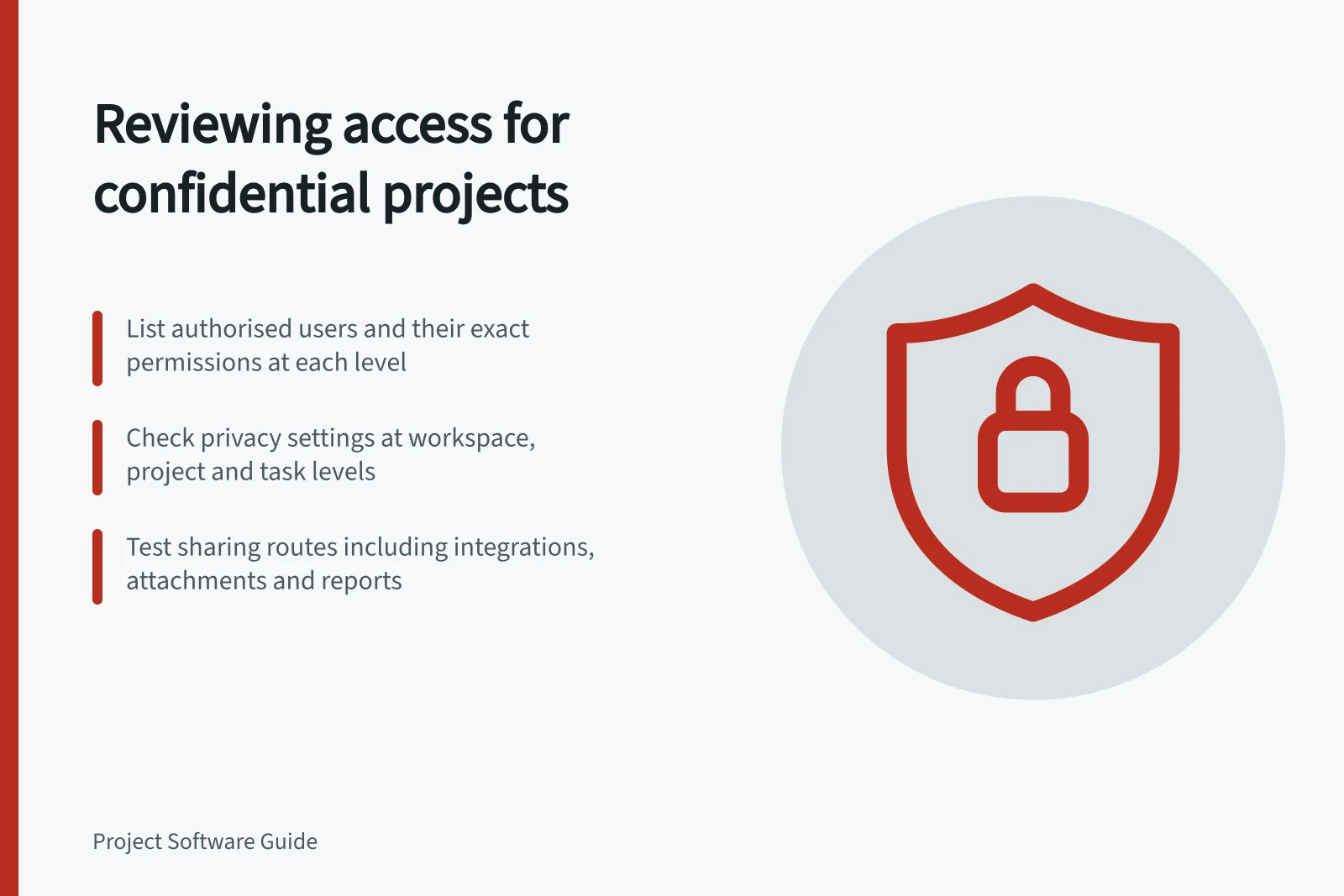
Review confidential work from the workspace down to each project, task and file, then trace every route by which it can be shared. At each level, record who can view, edit, manage access and invite others; check collaborators, attachments, views, reports, copies, notifications and integrations too. Test the boundary with authorised and excluded accounts before adding live material.
Define who needs access
List each authorised person or group, the material they need, the actions they may take and who can approve additional access. Include administrators and board or project owners, and distinguish a colleague who needs one task from a contributor who needs the whole project.
For example, a procurement project might contain draft supplier evaluations and a task that needs input from someone outside the core team. Decide what that colleague may see before assigning access, and keep the task’s audience separate from the wider project audience.
Asana describes guest seats for clients and contractors, and ClickUp identifies guest-type user roles. Treat an external collaborator as a separate access case: note the role label shown in the workspace and verify its viewing, editing and access-management rights rather than inferring them from the label.
External Collaborator Access Rights in Popular Project Tools
- Asana - Guest Seats
- Limited access; can view and comment on assigned tasks only
- ClickUp - Guest-Type User Roles
- Customisable roles with defined viewing/editing rights; not automatically restricted
Check the control at the right level
Start at the workspace or account, then check the project’s members, teams, invitation rights and task collaborators. At each relevant level, record who has access and whether that access carries into lower levels; verify the behaviour rather than assuming how permissions are inherited.
ClickUp names Spaces, Folders, Subfolders, Lists and tasks as locations that can be made private. Check each relevant location and identify who its privacy setting includes; do not rely on a private setting at one level to establish the audience for every item below it.
Look for role descriptions that state viewing, editing and access-management rights separately. If the workspace shows a role label without explaining its allowed actions, mark that boundary unresolved and do not treat labels such as “guest” or “private” as proof of restricted access.
Access Control Features Across Project Management Platforms
- ClickUp Privacy Levels
- Spaces, Folders, Subfolders, Lists, Tasks
- Monday.com Permissions
- Granular control per item, team, and project
- Asana Role-Based Access
- Admin, Member, Guest with defined actions
Verify the proposed setup
Check who can invite people, add task collaborators or share a link, and what each route exposes. For task-level access, test whether the person can see only the task or also its context, comments and attachments; if you cannot identify an audience control, do not count that route as restricted.
Treat attachments, shared views, dashboards and reports as separate routes to test. Asana describes reporting dashboards that turn project data into charts and metrics; check who can open each report and whether it reveals confidential information. Test the file itself and, where it is stored or shared through an integration, check the audience there too.
Asana lists Slack, Google Drive, Zoom and 100+ apps as integrations that can centralise conversations and files. Include any connected integration used for the project in the review, and verify its audience rather than assuming project access controls apply to it.
After moving, copying or resharing a sample item, repeat the access checks; do not assume its audience stays the same. In a suitable test area, use an authorised worker and an excluded reader, and include the relevant guest-type role if external access is planned. Check what each can find through search, direct access, attachments, views, reports and notifications, and record the result.
If an excluded reader can reach confidential material, or a route has no clear audience control, change the workspace design or keep that material in another controlled system. Review access when people leave, boards are copied or reports and shared views change.