Client Delivery
Part of Project software integrations
Passing support issues into a Jira project backlog
Move support issues into planned project work with clear triage, linked records, safe context sharing and a useful update path back to support.
Treat Zendesk as the customer conversation and Jira as the project-work record. Triage the report, search Jira for a match, then create an issue or link the ticket to existing work.
Assign an owner for the project work and agree what update support needs back. Creating or linking an issue does not by itself give support a customer-ready answer.
Triage before creating work
Record what happened, who is affected and what evidence the project team needs. Check what response the customer needs now, separately from the project investigation.
Check Jira link permissions before handoff. In Jira Cloud, Work item linking must be on and users need the Link Work Items permission.
In Jira Software Data Center, open a candidate issue and select More > Link. Choose Jira Issue, then search by full issue key or a few characters from the key or summary, or use the issue-search popup for a simple or advanced search.
If a Jira issue matches, link the support ticket to it; if there is no match, create a new Jira issue through the Zendesk–Jira integration. Keep related customer reports individually answerable, even when several tickets link to one Jira issue.
A Jira issue link connects two Jira issues, and its relationship type describes how they relate; examples include relates, duplicates and blocks. Do not use those Jira-to-Jira relationships as a substitute for linking the external support ticket.
Treat each comment or update as a separate handoff. Keep project-only discussion in Jira and customer-facing explanations in Zendesk, checking the destination and audience before posting.
Key Configuration Requirements for Integration
- Jira Cloud: Link Work Items permission
- Must be enabled
- Jira Software Data Center: Link option available
- Via 'More > Link' on issue
- Remote Issue Link required for external visibility
- Ticket URL and title mandatory
- Field syncing agreement needed
- Define which fields sync and who owns them
Check what the handoff copies
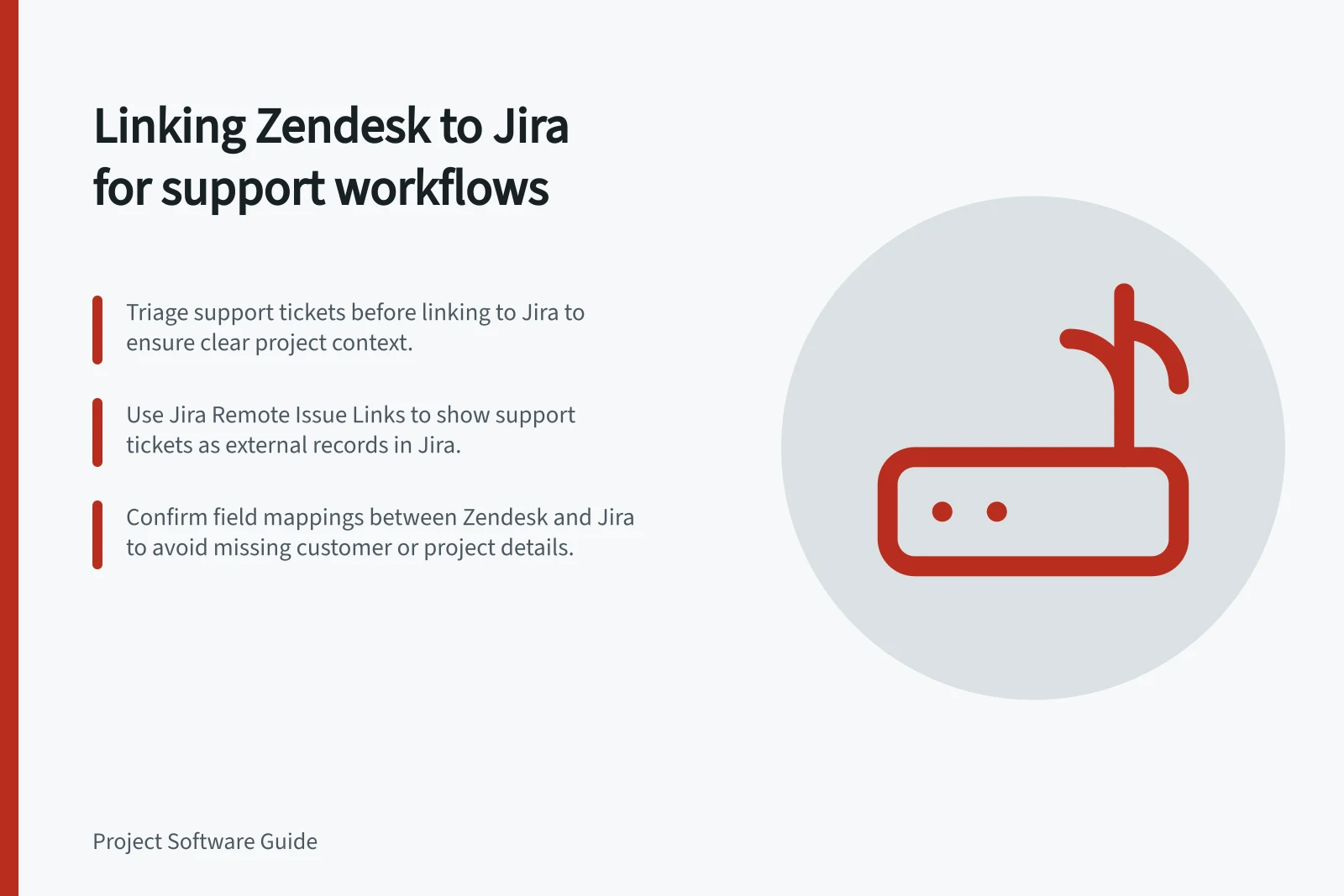
Do not assume a particular set of Zendesk fields copies by default. Check the field mappings in your Zendesk–Jira setup before relying on copied ticket context.
After creation, review the Jira issue for a suitable summary, impact, reproduction details, affected version and ticket reference. Add missing project context deliberately, and omit customer details the project team does not need.
If Jira needs to display the support ticket as an external record, a Jira Remote Issue Link can point to it. The ticket URL and title are required, the summary is optional, and the relationship displays as “links to” if none is supplied.
Treat Jira comments and Zendesk ticket updates as separate destinations. Do not assume a comment is hidden from customers or that an update appears in both systems; check its destination and audience before posting.
Return an answer support can use
Agree a support-facing outcome for each handoff: accepted for investigation, waiting for evidence, resolved, or closed without a change. Use these as plain-language outcomes, not as assumed Zendesk or Jira status values.
Name who owns the next support update. A Jira issue marked done may still need release confirmation or a response tailored to the customer.
If Zendesk–Jira field syncing is configured, agree which fields it covers and who owns them. Check that support receives the latest project state rather than relying on an assumed mapping.
Test the handoff with one support ticket and a related Jira issue. Inspect both records using ordinary support and project permissions, and check for missing context, duplicate work or a message visible to a customer before using the process for live tickets.