Capacity Planning
Part of Project software implementation
Setting project templates without forcing every team into one method
Create a common reporting core, optional modules and team-specific steps without imposing one project method on everyone.
Build the project template around information teams must share for handovers and reporting. Each team chooses the stages and planning rhythm that produce it. Require a field only when its purpose and maintainer are clear.
Define a common core
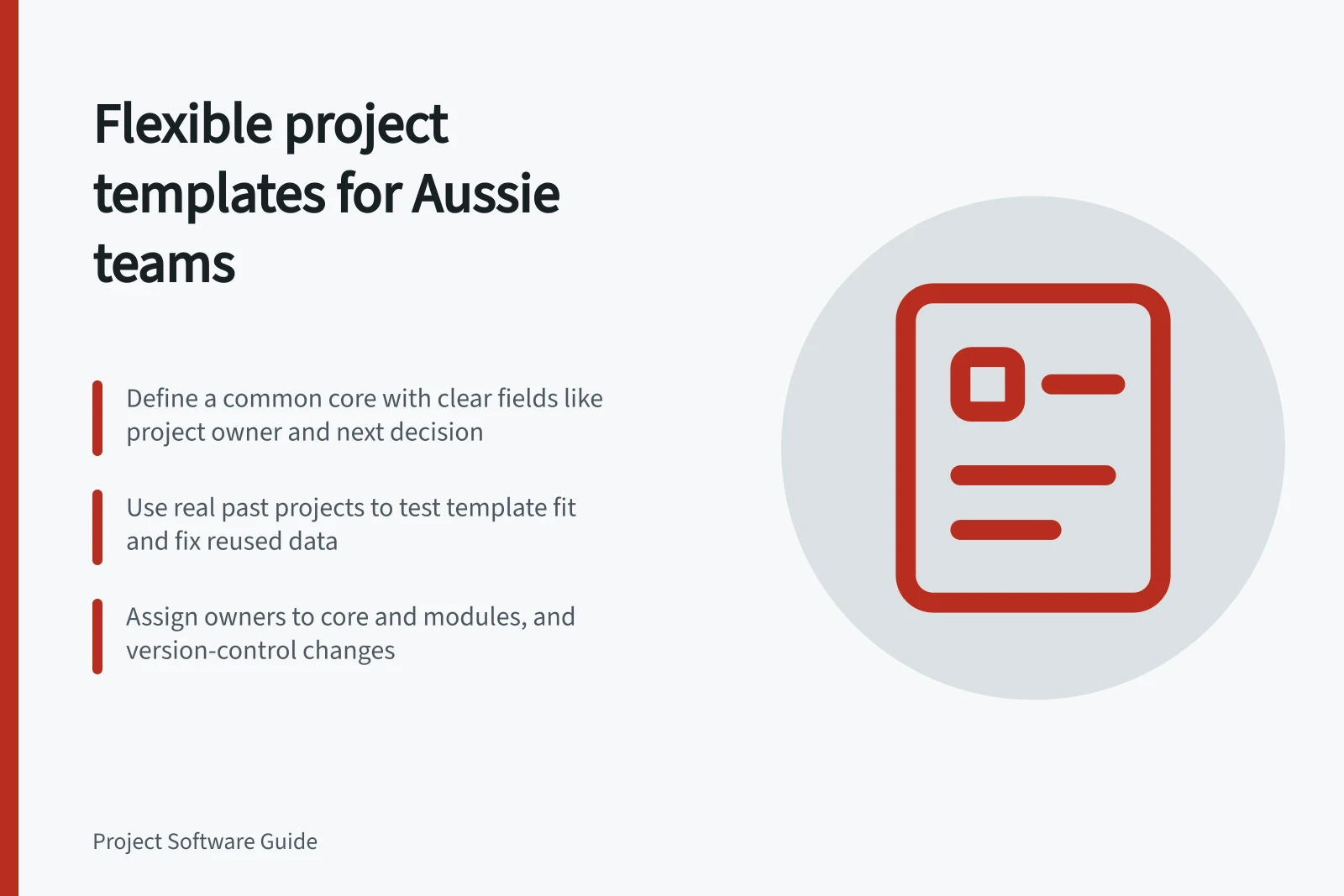
Ask teams and report recipients what must mean the same thing across projects. A small core might include the project owner, intended deliverable, next decision, current forecast and date of the latest update. Define each field. For example, state whether “complete” means the team finished its work or the recipient accepted it.
| Template part | Purpose |
|---|---|
| Required core | Information needed for shared handovers and reports |
| Optional modules | Repeatable steps, such as client review or supplier approval, used by some teams |
| Local practice | A team’s own stages, meetings and task detail |
A phased delivery project and a continuing service queue can use different local steps while both identify the owner of the next handover.
Project Template Components: Common Core vs. Optional Modules vs. Local Practice
- Common CoreInformation required for shared handovers and reporting (e.g., project owner, deliverable, next decision, forecast, last update date)
- Optional ModulesRepeatable steps like client review or supplier approval, used by some teams but not all
- Local PracticeTeam-specific stages, meetings, and task details unique to individual workflows
Try the template on real examples
Use a recently completed project from each kind of team. Create a new project from the proposed template and ask its lead what must be removed, added or reassigned. Notice required fields that invite guesses. A target launch date may fit a launch but not a continuing queue; place it in the relevant module unless shared reporting has a genuine need for it.
Inspect what the chosen tool copies when creating a project from a template. Check a new project for stale owners, dates, archived work and context that should not be reused.
How to Test a Project Template Using Real Examples
- Step 1Select a recently completed project from each team type (e.g., phased delivery, ongoing service queue)
- Step 2Create a new project from the proposed template and ask the lead what must be removed, added, or reassigned
- Step 3Identify required fields that invite guesswork (e.g., target launch date in a continuing queue)
- Step 4Inspect copied content in the new project for stale data such as archived work, outdated dates, or incorrect owners
Govern changes without freezing teams
Name an owner for the common core and each optional module. Ask teams to describe the problem a proposed change solves and which projects or reports it affects. Review changes to shared definitions before applying them broadly: the same field name should not count different things in a combined report.
Record template versions and tell leads which version to use for new work. Check in the chosen tool whether editing a template affects existing projects; do not assume a past project will change with it. If one template takes extensive deletion to fit a team’s normal work, create a variant that retains the agreed core.
Govern Template Changes Without Restricting Teams
- Assign OwnersName an owner for the common core and each optional module
- Assess ImpactRequire teams to describe the problem a change solves and which projects/reports it affects
- Review Before RolloutEnsure shared field definitions remain consistent across reports; avoid conflicting meanings
- Version ControlRecord template versions and instruct leads on which version to use for new projects
- Avoid Unintended UpdatesVerify whether editing a template affects existing projects—do not assume changes propagate automatically
- Create Variants When NeededIf a template requires excessive deletion to fit a team’s workflow, develop a variant that preserves the agreed core