Portfolio View
Part of Agile project software
Evaluating release planning features: a practical guide
A release plan should expose what is intended to ship, what could block it and who decides when scope changes. A timeline without these links can make an uncertain date look settled.
Evaluate release planning features against observable outcomes: can you identify the work assigned to a release, see how teams’ plans align, and spot dependencies that put scheduled work at risk? Use the same test scenario and pass/fail criteria for each planning view.
Set up a sample release with work from two teams, one dependency and a priority change. For each capability, record pass or fail and the visible evidence: included work, timeline placement, changed assignment or priority, dependency direction, and any risk indication.
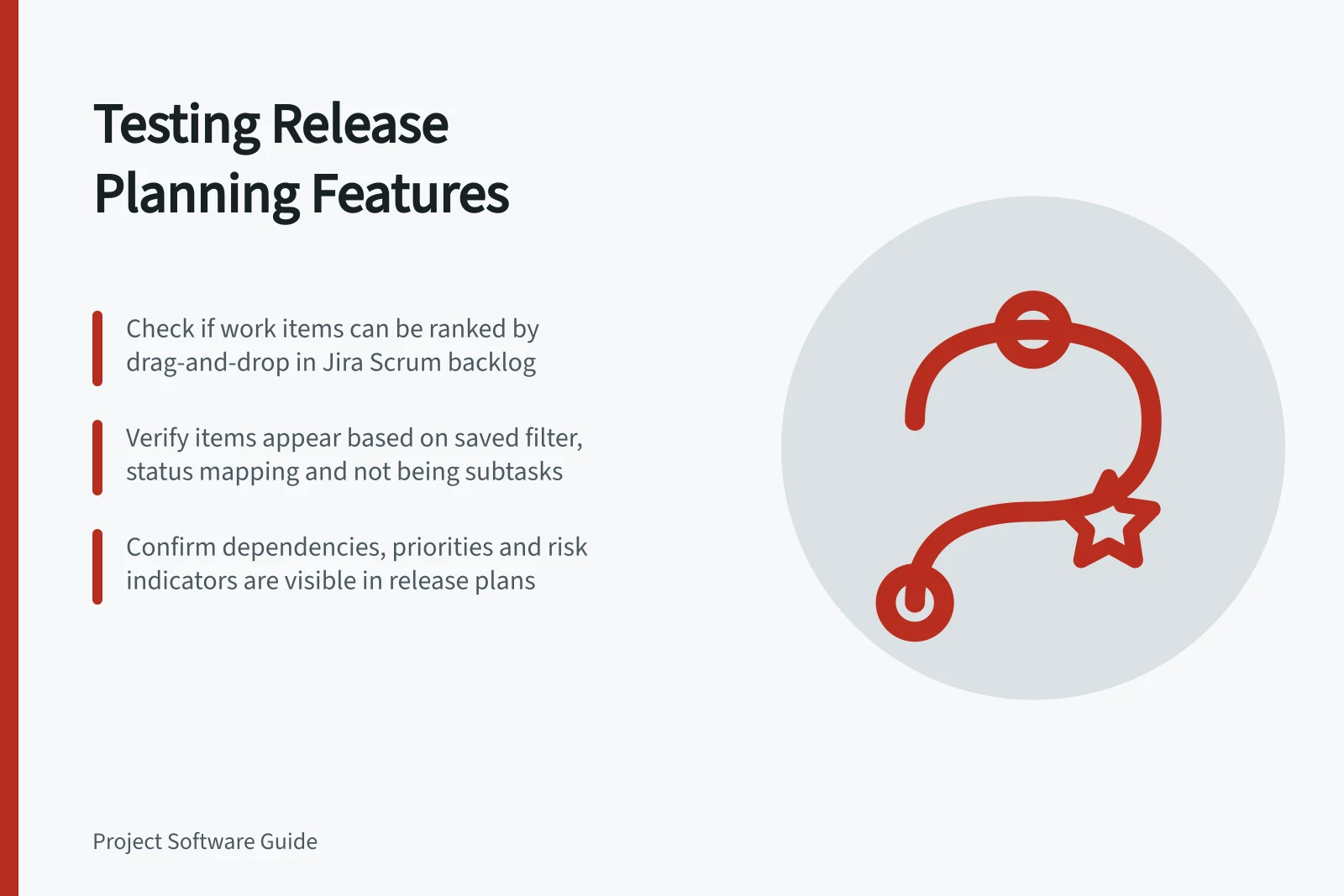
In Jira’s Scrum backlog, check whether you can rank work items by dragging and dropping them, and assign them to versions or epics. You can also edit fields such as assignee, estimate and priority directly on a work item card.
Check the conditions that determine whether work appears in the Jira Scrum backlog. An item must not be a subtask, must match the board’s saved filter, and must have a status mapped to a board column other than Done; at least one status must map to the right-most column.
Check permissions as part of the test. Jira notes that different Scrum backlog functions require different permissions, so confirm that evaluators can access the actions they need.
For cross-team planning in Jira, check Advanced Roadmaps dependencies. These advanced planning features are available only with Jira Cloud Premium or Enterprise; no price figure is specified here.
Dependent work items appear on the timeline as connected lines or numbered badges that show the direction of the relationship. Off-track dependencies turn red when a lead-in item puts the next item at risk; configured link types are treated as Blocks. Test whether the view makes these relationships and risks clear, including when dependencies are in the same iteration.
In Azure Boards, check Delivery Plans for a calendar timeline that overlays selected teams’ backlogs, including stories, features or epics, on a delivery schedule. Test whether you can select the teams and backlog levels, update assignments, and drill into work item details.
Also check Azure Boards portfolio backlogs and dashboards. The multi-team portfolio backlog lets you reorder Features, drill into child Stories or PBIs, and filter by keyword or tag; dashboards can monitor status, progress and trends across teams.
Use a consistent scorecard: work assigned to a version and ranked; cross-team work visible on a timeline; dependency direction and off-track risk visible; and work inspectable, filterable or updateable where supported. Mark each check pass only when the result appears in the tested view.
Jira Scrum Backlog vs Azure Boards Delivery Plans: Key Features for Release Planning
- Work Assignment to Version/EpicSupported in both
- Drag-and-Drop RankingYes – Jira; No – Azure Boards
- Cross-Team Timeline ViewAdvanced Roadmaps (Jira) – Yes; Delivery Plans (Azure) – Yes
- Dependency Risk IndicationRed indicators for off-track dependencies in Jira; no automatic risk flagging in Azure Boards
- Multi-Team Portfolio BacklogAvailable in Azure Boards; limited in Jira without Premium/Enterprise
Feature Availability by Tool and License Tier
- Jira Advanced Roadmaps (Dependencies & Timeline)
- Jira Cloud Premium or Enterprise only
- Azure Boards Delivery Plans
- Available in all Azure DevOps plans
- Jira Scrum Backlog Editing
- All tiers with Scrum board access
- Multi-Team Portfolio Backlogs
- Azure Boards only